


Your Google review link is a short URL that opens the review box for your business in one tap. To find it, open your Google Business Profile, select Get more reviews, choose Share review form, and copy the link.
If you can’t see that option, you can build the same link yourself using your business’s Place ID. Once you have it, you can turn it into a QR code, drop it into a text message, or print it on a receipt.
This guide shows you every method, the best places to share the link in a restaurant or hotel, and the Google rules to stay within while you do it.
What is a Google review link?
A Google review link is a direct URL that takes a guest straight to the review form for your business on Google. They skip the searching, the scrolling, and the “where do I click?” moment. They just tap, pick a star rating, and write.
That small shortcut matters more than it sounds. Most happy guests never leave a review because it takes a few extra steps. A direct link removes those steps.
It also matters for visibility. Google has said that review count and score are part of how it ranks local businesses, so a steady flow of genuine reviews helps more people find you in the first place.
How to find your Google review link?
The fastest way to find your Google review link is through your Google Business Profile. It takes less than a minute.
- Sign in to the Google account that manages your Business Profile using business.google.com.
- Select your business if you manage more than one.
- On the Home tab, find the card called Get more reviews (it may say Get your first review if you are just starting).
- Select Share review form.
- Copy the link from the pop-up. You can also share it straight from there by email or messaging apps.
- Test it. Open the link on your phone and confirm it lands on the review form, not just your Maps listing.
Google moves these menus around fairly often. If the labels look different, look for wording like Ask for reviews or Share review form. The link itself works the same way.
How to create a Google review link with your Place ID?
You can create a Google review link with your Place ID when the Business Profile option isn’t showing, or when you need links for many locations at once. A Place ID is the unique code Google gives every place on its map.
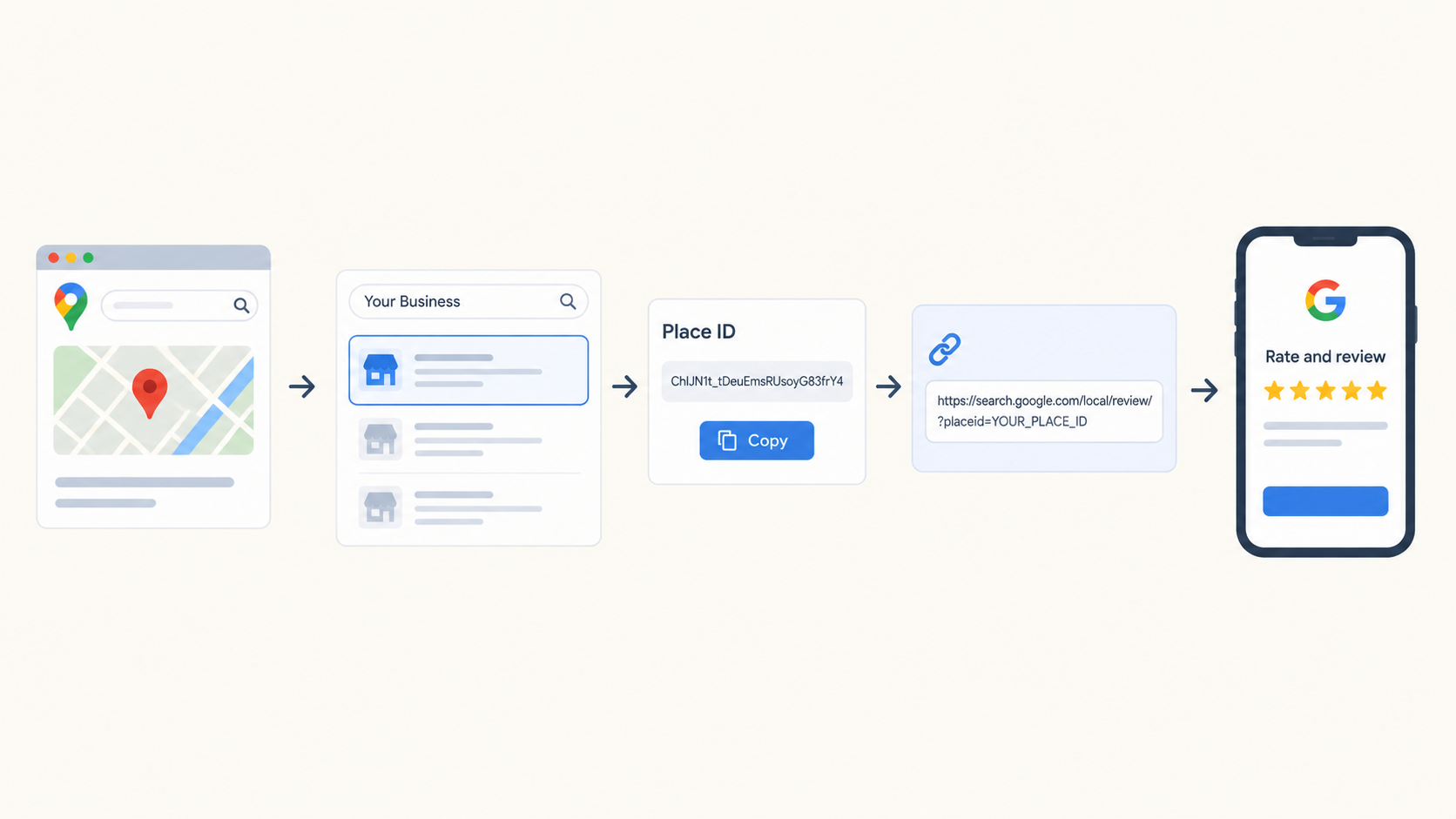
- Open Google’s Place ID Finder (part of Google Maps Platform).
- Search for your business name and address, and select the right result.
- Copy the Place ID shown for your business. It is a long string of letters and numbers.
- Paste it into this link format, replacing the placeholder:
https://search.google.com/local/writereview?placeid=YOUR_PLACE_ID
- Test the link on your phone to confirm it opens the review form for the correct business.
This method is also the easiest way to build links for several locations. Each location has its own Place ID, so each one gets its own link.
A quick third option: find it through Google Search
If you are signed in to the account that manages your profile, you can also search for your business name on Google. Your profile appears with owner tools, including a button to ask for reviews. Select it and copy the link from the pop-up.
This is handy when you are already on your phone and don’t want to open the dashboard.
How to turn your link into a short link or a QR code?
A long link looks messy in a text message and is impossible on a printed card. Fix that before you share it.
For a short link: paste your review link into any link shortener, then test the short version. Keep the short link in a shared document so your whole team uses the same one.
For a QR code: paste your review link into a free QR code generator and download the image. Then scan it with a phone to confirm it opens the review form before you print anything.
A few small habits save a lot of reprints:
- Print the QR code at least 2 centimetres wide so phones scan it easily.
- Add a short line next to it, such as “Enjoyed your visit? Tell us on Google.”
- Re-test the QR code after every print run.
Where to share your Google review link?
The best place to share your Google review link is wherever a happy guest already is, at the moment they feel good. Here is how that looks in hospitality.

Restaurants
- A QR code on the bill folder or table card
- A text message or WhatsApp message sent after the meal
- The footer of your digital receipt
- Your website and social media bio
Hotels
- A checkout email sent within a few hours of departure
- A small card at the front desk or in the room
- A QR code on the key card sleeve
- Your confirmation and thank-you emails
Both
- Your email signature
- Your website footer and contact page
Sharing across at least three of these places gives you steady coverage without feeling pushy anywhere.
When and how to ask for a review
The best time to ask is shortly after a good experience, while it is still fresh. For a restaurant, that is the same evening or the next morning. For a hotel, it is within a day of checkout.
Keep the message short, warm, and honest. One paragraph, one ask, one link.
Sample message for a restaurant:
“Thank you for dining with us tonight. If you enjoyed your visit, we would love to hear about it. It takes less than a minute here: [your Google review link]”
Sample message for a hotel:
“Thank you for staying with us. We hope you had a comfortable visit. If you have a moment, sharing your experience on Google helps future guests choose with confidence: [your Google review link]”
Both messages ask for an honest opinion. Neither asks for five stars, and that is exactly the point.
What you can’t do when asking for reviews

You cannot offer anything in return for a review, and you cannot pick and choose who gets asked. Google treats both as rating manipulation, and the reviews can be removed.
Here is what Google’s content policy rules out:
- Incentives. No discounts, free items, or rewards in exchange for a review, or for changing or removing one.
- Review gating. Don’t send unhappy guests to a private form while sending happy guests to Google. Google does not allow selectively soliciting positive reviews or discouraging negative ones.
- Pressure on the premises. Don’t require or push guests to write a review while they are still at your venue.
- Scripted content. Don’t ask guests to mention specific things, including a staff member by name.
If a business is repeatedly caught breaking these rules, Google may restrict its profile in addition to removing the reviews. The safe approach is simple: ask everyone, ask honestly, and accept what they say. If you ever need to deal with a review that breaks the rules from the other side, our guide on whether you can delete Google reviews explains how reporting works.
Do you need a separate link for each location?
Yes. Every location has its own Google Business Profile and its own Place ID, so each one needs its own review link.
For a restaurant group or hotel chain, keep a simple sheet with the location name, the review link, and the short link. Give each outlet only its own link, so reviews land on the right profile and your team can see where feedback is coming from.
Why your Google review link isn’t working
Most problems come down to a handful of causes. Check these first.
- You can’t find the option. Your profile may not be verified yet, or you may be signed in to the wrong Google account. Verify the profile and sign in with the account that manages it.
- The link opens your Maps listing instead of the review form. Rebuild it with the Place ID method and test again.
- The guest says the review box won’t open. They need to be signed in to a Google account to leave a review. Ask them to sign in first.
- A review was posted but isn’t showing. New reviews can take a little time to appear, and Google may hold ones it flags for a policy check.
- The link points to the wrong business. Double-check the Place ID against your exact address, especially if a similar business is nearby.
What to do when the reviews start coming in
A review link is only the start. The real work begins when reviews arrive, and every one deserves a reply.
This is where Olly comes in. Olly reads every review across Google, Yelp, Tripadvisor, and 12 other platforms, for all your locations, around the clock. It writes replies in your voice, learned from your past replies, so each one sounds like you and fits the outlet it is for. You approve, and Olly posts, or you can use draft-only mode and approve every reply yourself.
When a serious complaint lands, Olly alerts your team instantly and opens a ticket so someone owns it. It also reads across hundreds of reviews to spot patterns, like a dish that keeps getting complaints or a team member guests keep praising, and sends a daily recap so you see what needs attention in about a minute.
So once your link brings in more reviews, Olly helps you keep up with all of them.
Frequently asked questions
Ques. How do I get my Google review link?
Ans. Sign in to your Google Business Profile, select Get more reviews, choose Share review form, and copy the link. If that option is missing, build the link with your Place ID.
Ques. Can I create a Google review link without a Business Profile?
Ans. Yes. You can build one with your business’s Place ID using the link format https://search.google.com/local/writereview?placeid=YOUR_PLACE_ID. Claiming and verifying your profile is still worth doing so you can reply to reviews.
Ques. How do I make a QR code for my Google review link?
Ans. Copy your review link, paste it into a free QR code generator, and download the image. Scan it with your phone to confirm it opens the review form before printing.
Ques. Does a guest need a Google account to use the link?
Ans. Yes. Guests must be signed in to a Google account to post a review. If they aren’t signed in, Google prompts them to sign in first.
Ques. Can I change or edit my Google review link?
Ans. The link is tied to your business’s Place ID, so it stays the same. You can shorten it or put it behind a QR code, but the destination remains your review form.
Ques. Can I offer a discount for a Google review?
Ans. No. Google does not allow incentives for reviews, including for changing or removing one. Offering a reward can get the reviews removed and your profile restricted.
Ques. Can I send my review link only to happy customers?
Ans. No. Selectively asking only satisfied guests is review gating, and Google’s policy does not allow it. Send the request to everyone and let the reviews reflect real experiences.
Ques. How many reviews should I ask for?
Ans. There is no set number, and Google does not allow pressure or quotas on staff. Aim for a steady, natural flow by including the link in your regular guest communication.
The bottom line
Your Google review link is one of the simplest tools you have. Find it in your Business Profile, build it with a Place ID if you need to, and put it in front of guests when they are happiest.
Guests increasingly check reviews and replies before choosing where to eat or stay, and the businesses that win that moment are the ones that make leaving a review effortless and respond to every one with care. Start with the link today, and build the habit that keeps your reputation growing long after.